
From plugin install to first hire
A walkthrough of the Workeera workflow — what site admins, job seekers and companies experience at every step, including the AI that automates screening and speeds up applications.
The big picture
Four high-level steps that take a site from empty to a fully working tech job board.
Install & Configure
Activate Workeera, choose default pages, and configure submission limits, location modes and apply methods.
Users Onboard
New visitors sign up and choose a role — Job Seeker or Company — to land on the right dashboard.
Jobs Go Live
Companies post listings; candidates discover them via rich filters and apply with one click.
Pipeline Tracking
Employers and admins review, shortlist or reject applicants — all status changes are visible to candidates too.
Each step in detail
A frame-by-frame look at the Workeera hiring flow — same screens your users will see.
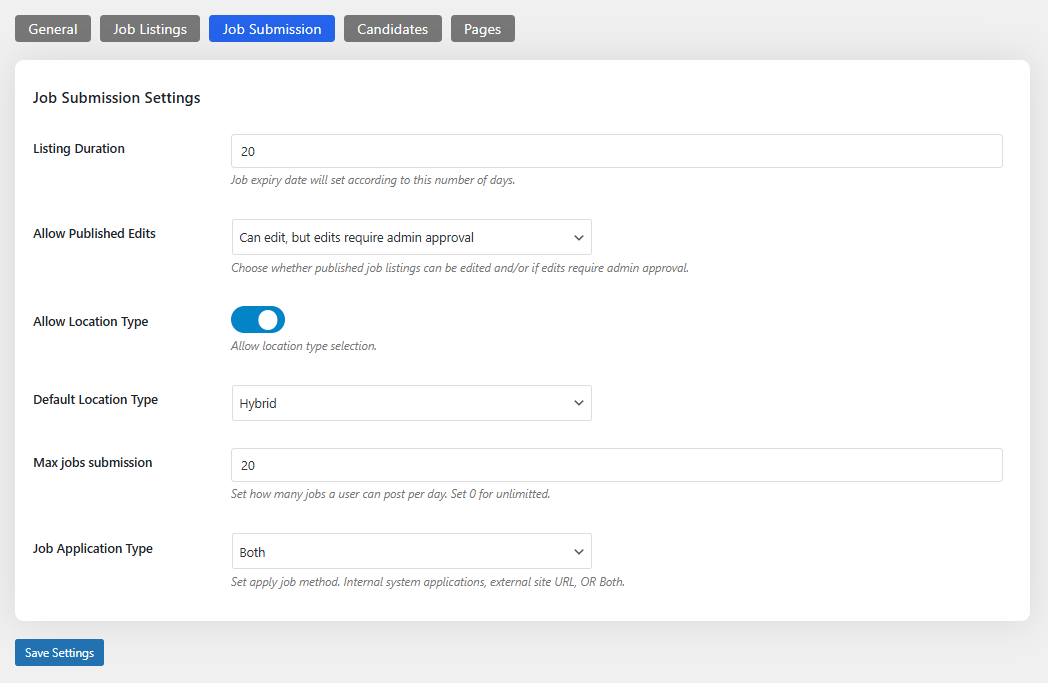
Configure the plugin once — own the rules forever
From the Job Submission settings, site admins decide how long listings stay live, who can edit published jobs, and whether candidates can apply internally, externally, or both.
- Set listing duration (e.g. 20 days)
- Decide if edits require admin approval
- Pick default location type — Remote, Hybrid or On-Site
- Cap daily job submissions per user
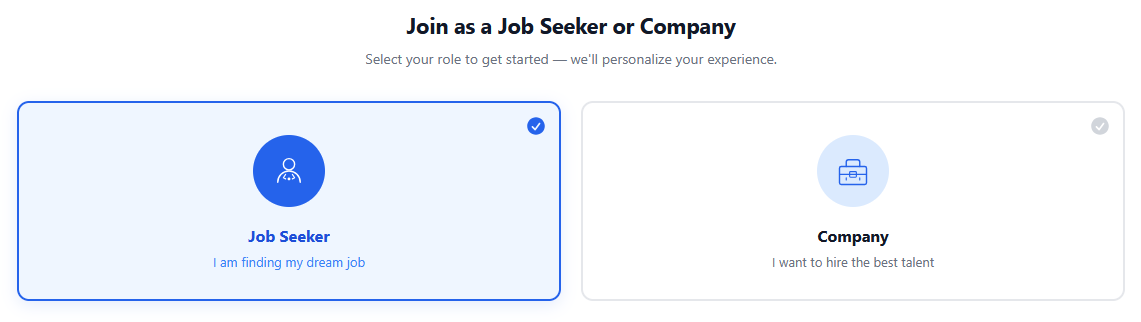
One sign-up flow, two tailored experiences
When users register, Workeera presents a friendly role-selection screen. The choice routes them to the right dashboard — and unlocks the right capabilities.
- Job Seeker — apply, save jobs, manage CVs
- Company — post jobs, manage applicants
- Clean, conversion-friendly UI
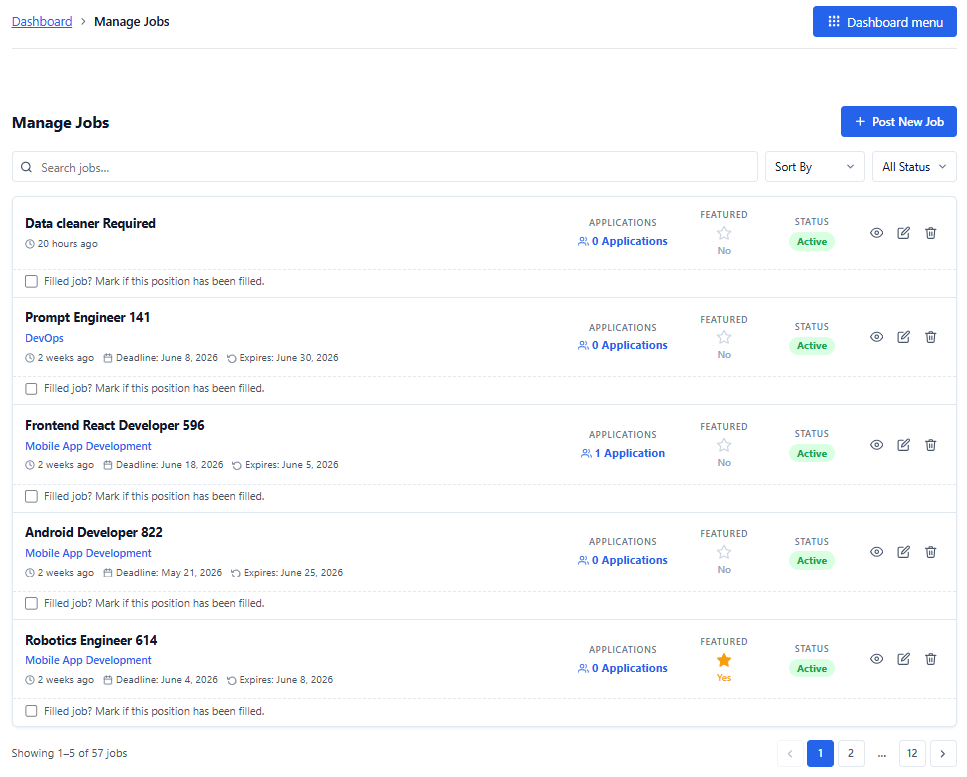
Manage every listing from a single dashboard
Companies hit Post New Job, fill in details, and the listing goes live on the frontend immediately. From the Manage Jobs screen they can pause, edit, mark filled, or delete jobs.
- Featured toggle for high-priority roles
- Status + Active label per listing
- Mark filled with a single checkbox
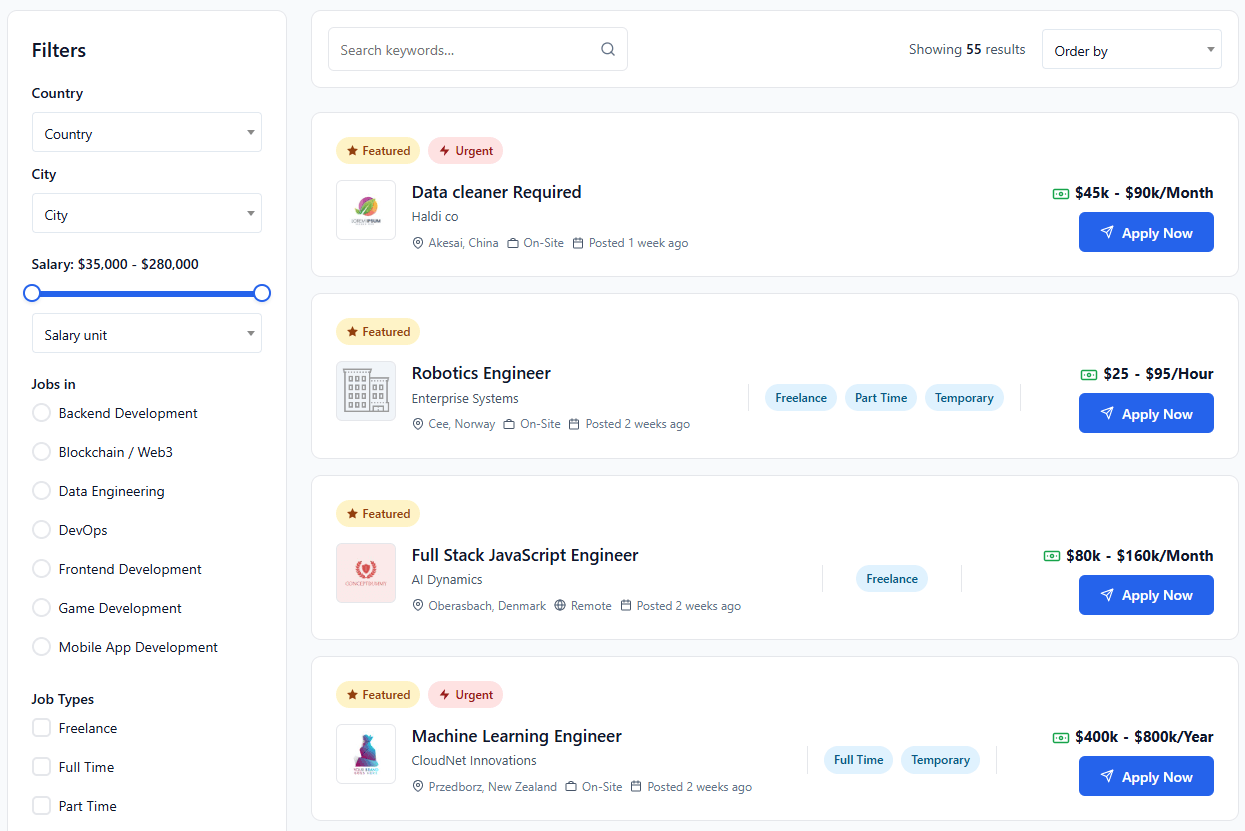
Filter, search, apply — without friction
Candidates use the rich filter sidebar to find tech roles that match their salary, location, timezone and tech stack — then apply with a saved CV from their profile.
- Search + sort + filter on a single page
- Featured / Urgent badges surface key roles
- Apply Now opens internal form or external URL
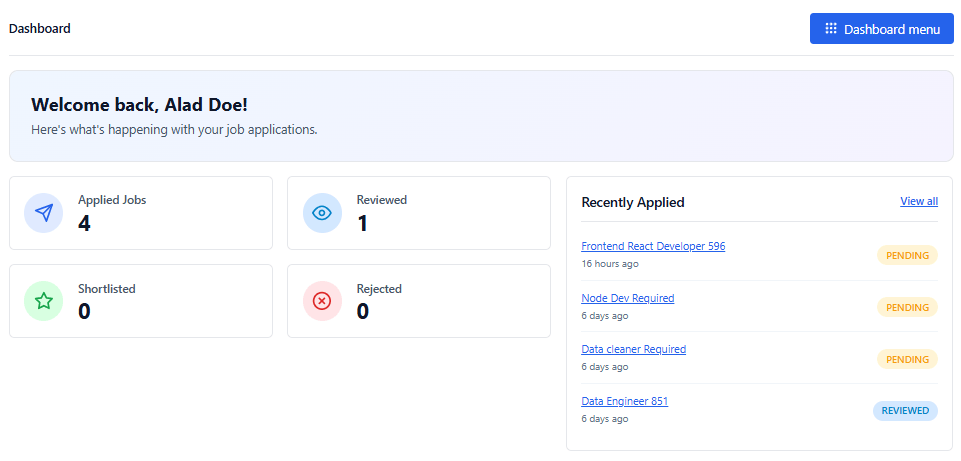
Every application visible in one place
The candidate dashboard summarises every application — applied, reviewed, shortlisted, rejected — and powers Recommended Jobs based on activity.
- Live status updates from companies
- Recently Applied panel at a glance
- CV Manager keeps every resume version handy
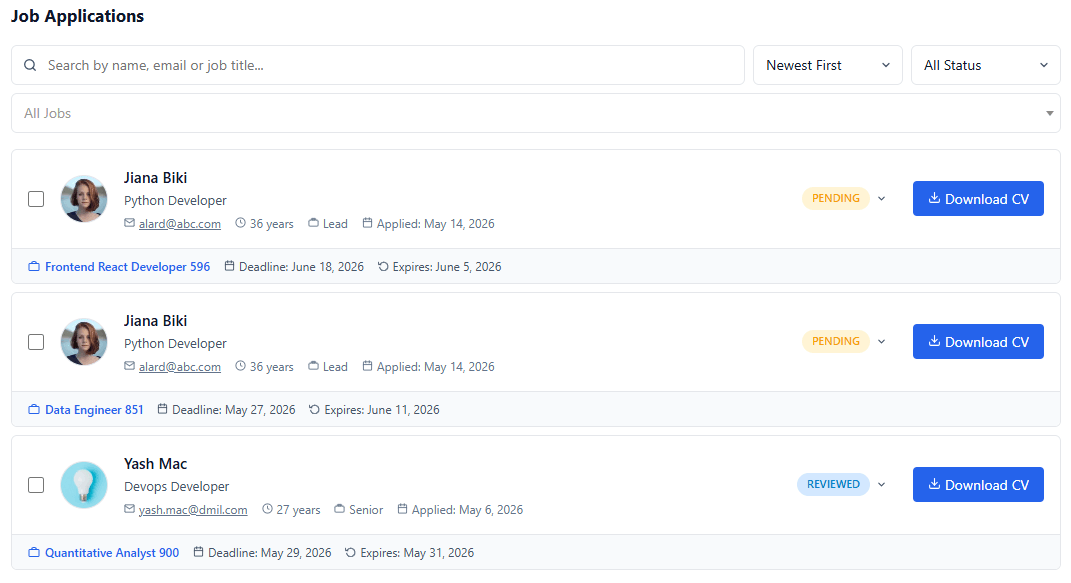
Triage every applicant from one screen
Companies open the Job Applications screen, change status inline (Pending → Reviewed → Shortlisted), download CVs and move the right people forward — fast.
- Search applicants by name, email or job
- Inline status dropdown updates the candidate instantly
- Download CV available for every applicant
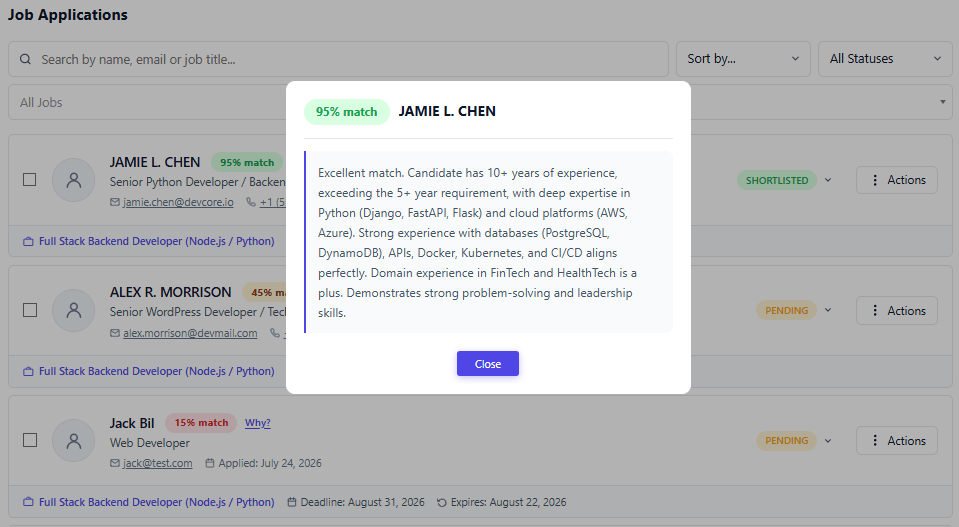
AI shortlists the best-fit candidates for you
As applications arrive, Workeera scores each one 0–100 against the job and explains why. Employers and admins see the strongest matches first — automated screening that saves hours on every role.
- Automatic match score for every application
- A clear reason behind each score
- Best matches sorted to the top for faster shortlisting
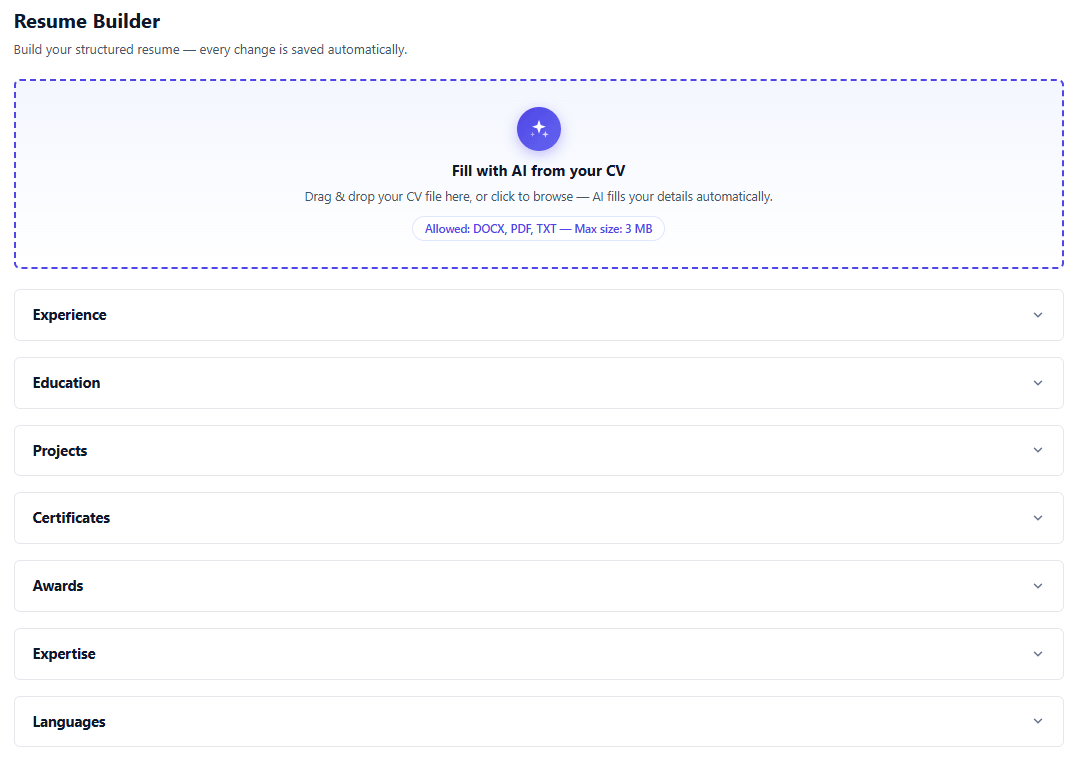
AI resume parsing and a builder speed up applying
Job seekers upload a CV and AI parses it into a ready-to-edit profile, or craft a polished resume with a guided builder. Less busywork for candidates, richer profiles for employers — everyone saves time.
- AI parses an uploaded CV into a structured profile
- Guided resume builder for a complete, professional resume
- Candidates apply with ease, in minutes
Got questions about the workflow?
Reach out for a walkthrough or to discuss customizations to fit your hiring process.